

PAX A-35 Set Up
Part 1:
Getting the IP Address of the PAX A-35
step 1
On booting up the device, you will get the main screen. Click on the SETTINGS icon.

step 3
Look for
NETWORK & INTERNET

step 5
You will find the IP Adress there.

step 2
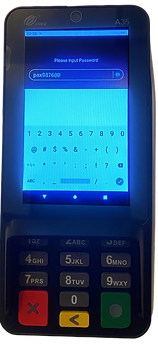
Key in the Password as shown on the screen
(pax9876@@).
step 4
Click on
ETHERNET

Part 2:
Setting up the Hosts file
Step 1
Once you have the IP address of your PAX A-35, you will need to configure the hosts file on your PC.
The host's file is a special file in Windows that gives a name to the IP Address.
Press the Windows key.
Type Notepad in the search field.
In the search results, right-click Notepad and select Run as administrator.

Step 2
From Notepad, open the following file: c:\Windows\System32\Drivers\etc\hosts
Step 3
From Notepad, open the following file: c:\Windows\System32\Drivers\etc\hosts


Step 4
Add the following entry to the bottom of the host's file.
The IP address entered may not be 192.168.0.4 but should be the one you noted down in Step One.
192.168.0.4 pax1.lightningpos.com
It should look something like this.
Click File > Save to save your changes.
NOTE: the pax1.lightningpos.com value can also be
pax2.lightningpos.com
pax3.lightningpos.com etc.